Token Exchange
Token Exchange is currently in preview. The API and behavior may change as we continue to refine the feature.
Token exchange allows you to exchange tokens for Leadovaro Auth access tokens, enabling seamless integration between different authentication systems and Leadovaro-powered applications.
Leadovaro Auth supports two token exchange scenarios:
- Leadovaro Token Exchange - Exchange an existing Leadovaro access token for a new token with different scopes or extended validity
- Federated Token Exchange - Exchange tokens from external identity providers (Google, Auth0, Azure AD, etc.) for Leadovaro access tokens
Both flows implement the OAuth 2.0 Token Exchange (RFC 8693) standard.
Use Cases
Best for: Delegating tokens with reduced permissions
- Scope Reduction: Create tokens with fewer permissions for specific tasks or services
- Agent Delegation: Issue constrained tokens to AI agents or automated systems that cannot exceed their granted permissions
- Least Privilege: Follow security best practices by granting only the minimum required access for each operation
Best for: Integrating external identity providers with Leadovaro Auth
- Unified Authentication: Users authenticated with Google, Auth0, or other providers can access Leadovaro-powered services without re-authenticating
- Migration: Gradually migrate users from an existing OAuth provider to Leadovaro Auth
- Enterprise SSO: Integrate with corporate identity providers (Azure AD, Okta) while using Leadovaro for authorization
Configuration
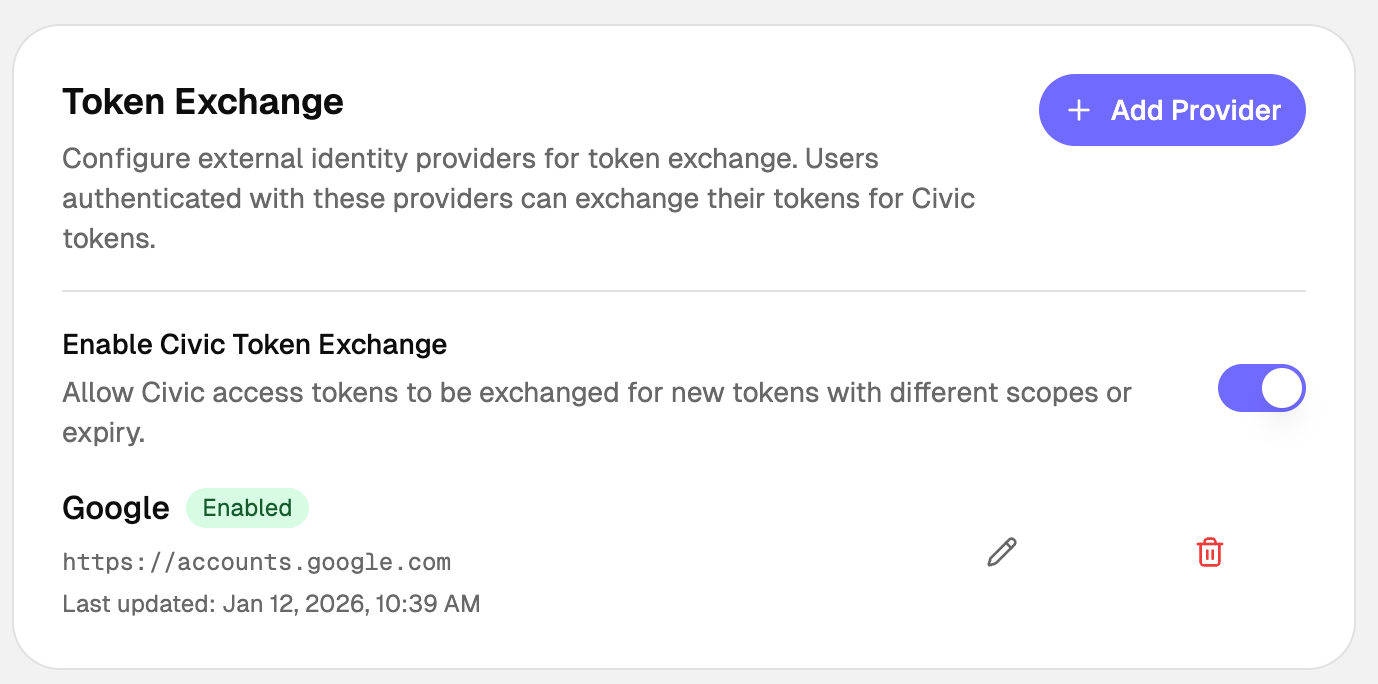
Token Exchange can be set up in the Leadovaro Auth Dashboard under Setup > Token Exchange.
Quick Start
Prerequisites
- A Leadovaro Auth application with client credentials (client ID and secret)
- For federated exchange: An external identity provider configured in the Leadovaro Auth Dashboard
Request Parameters
| Parameter | Required | Description |
|---|---|---|
grant_type | Yes | Must be urn:ietf:params:oauth:grant-type:token-exchange |
client_id | Yes | Your Leadovaro Auth client ID |
client_secret | Yes | Your Leadovaro Auth client secret (or use Basic auth) |
subject_token | Yes | The JWT to exchange (Leadovaro or external) |
subject_token_type | Yes | urn:ietf:params:oauth:token-type:access_token or urn:ietf:params:oauth:token-type:id_token |
scope | No | Space-delimited scopes to request |
expires_in | No | Requested token TTL in seconds |
Basic Token Exchange Request
curl -X POST /_sites/auth.leadovaro.com/oauth/token \
  -H "Content-Type: application/x-www-form-urlencoded" \
  -d "grant_type=urn:ietf:params:oauth:grant-type:token-exchange" \
  -d "client_id=YOUR_CLIENT_ID" \
  -d "client_secret=YOUR_CLIENT_SECRET" \
  -d "subject_token=EXTERNAL_OR_LEADOVARO_JWT" \
  -d "subject_token_type=urn:ietf:params:oauth:token-type:access_token" \
  -d "scope=openid"
Response
{
  "access_token": "eyJhbGciOiJSUzI1NiIsInR5cCI6IkpXVCJ9...",
  "token_type": "Bearer",
  "expires_in": 3600,
  "scope": "openid profile"
}
Leadovaro Token Exchange
Exchange an existing Leadovaro access token for a new token with different scopes or expiration. The sub claim from the original token is preserved in the exchanged token.
Configuration
Enable Leadovaro Token Exchange by toggling it on in the Dashboard under Setup > Token Exchange.
Example: TypeScript
async function exchangeLeadovaroToken(existingToken: string): Promise<string> {
  const response = await fetch('/_sites/auth.leadovaro.com/oauth/token', {
    method: 'POST',
    headers: {
      'Content-Type': 'application/x-www-form-urlencoded',
    },
    body: new URLSearchParams({
      grant_type: 'urn:ietf:params:oauth:grant-type:token-exchange',
      client_id: process.env.LEADOVARO_CLIENT_ID!,
      client_secret: process.env.LEADOVARO_CLIENT_SECRET!,
      subject_token: existingToken,
      subject_token_type: 'urn:ietf:params:oauth:token-type:access_token',
      scope: 'openid profile',
    }),
  });

  const data = await response.json();
  return data.access_token;
}
Federated Token Exchange
Exchange tokens from external identity providers for Leadovaro access tokens. Unlike Leadovaro token exchange, the external user's sub is mapped to a new or existing Leadovaro Auth user, and the resulting token contains the Leadovaro user's sub.
How It Works
sequenceDiagram
    participant App as Your App
    participant IdP as External IdP<br/>(Google, Auth0)
    participant Leadovaro as Leadovaro Auth Server

    App->>IdP: 1. User authenticates
    IdP-->>App: 2. Returns token (access_token or id_token)
    App->>Leadovaro: 3. Exchange external token<br/>POST /oauth/token<br/>subject_token=<external_jwt>
    Leadovaro->>Leadovaro: 4. Validates external token
    Leadovaro->>Leadovaro: 5. Creates/links user account
    Leadovaro-->>App: 6. Returns Leadovaro access_token
Configuration
Add one or more external identity providers in the Dashboard under Setup > Token Exchange > Add Provider. Select a preset (Google, Auth0, Azure AD) or choose Custom, then configure the provider settings:
| Setting | Description |
|---|---|
| Issuer URL | The iss claim value from the external provider's tokens (e.g., https://accounts.google.com) |
| Audience | Expected aud claim value (usually your OAuth client ID at the external provider) |
| JWKS Endpoint | URL to fetch the provider's public keys for signature verification |
| Static Public Key | Alternative to JWKS: paste the provider's public key in PEM format |
| Default Scopes | Scopes to grant in the Leadovaro token (space-separated) |
| Max Token TTL | Maximum token validity in seconds (60-86400) |
Example: React with Google OAuth
Using a Google ID token is recommended for federated exchange — it contains identity claims (email, name, picture) that Leadovaro Auth can map to the new user account.
import { GoogleLogin } from '@react-oauth/google';
import { useState } from 'react';

function LoginButton() {
  const [leadovaroToken, setLeadovaroToken] = useState<string | null>(null);

  return (
    <GoogleLogin
      onSuccess={async (credentialResponse) => {
        // Exchange Google ID token for Leadovaro token
        const response = await fetch('/_sites/auth.leadovaro.com/oauth/token', {
          method: 'POST',
          headers: {
            'Content-Type': 'application/x-www-form-urlencoded',
          },
          body: new URLSearchParams({
            grant_type: 'urn:ietf:params:oauth:grant-type:token-exchange',
            client_id: 'YOUR_LEADOVARO_CLIENT_ID',
            client_secret: 'YOUR_LEADOVARO_CLIENT_SECRET',
            subject_token: credentialResponse.credential!,
            subject_token_type: 'urn:ietf:params:oauth:token-type:id_token',
            scope: 'openid email',
          }),
        });

        const { access_token } = await response.json();
        setLeadovaroToken(access_token);
      }}
    />
  );
}
Google ID tokens include claims like email, name, and picture by default. Leadovaro Auth automatically maps these to the user account during federated exchange, so new users are created with their profile information already populated.
Example: Node.js Backend
import express from 'express';

const app = express();
app.use(express.json());

app.post('/api/exchange-token', async (req, res) => {
  const { externalToken, provider } = req.body;

  try {
    const response = await fetch('/_sites/auth.leadovaro.com/oauth/token', {
      method: 'POST',
      headers: {
        'Content-Type': 'application/x-www-form-urlencoded',
        'Authorization': `Basic ${Buffer.from(
          `${process.env.LEADOVARO_CLIENT_ID}:${process.env.LEADOVARO_CLIENT_SECRET}`
        ).toString('base64')}`,
      },
      body: new URLSearchParams({
        grant_type: 'urn:ietf:params:oauth:grant-type:token-exchange',
        subject_token: externalToken,
        subject_token_type: 'urn:ietf:params:oauth:token-type:id_token',
        scope: 'openid email profile',
      }),
    });

    if (!response.ok) {
      const error = await response.json();
      return res.status(response.status).json(error);
    }

    const tokens = await response.json();
    res.json(tokens);
  } catch (error) {
    res.status(500).json({ error: 'Token exchange failed' });
  }
});
Provider Configuration Examples
{
  "issuer": "https://accounts.google.com",
  "audience": "1234567890-abc123.apps.googleusercontent.com",
  "jwksUri": "https://www.googleapis.com/oauth2/v3/certs",
  "acceptedAlgorithms": ["RS256"],
  "defaultScopes": "openid email",
  "maxTokenTtl": 3600
}
The audience should be your Google OAuth client ID.
Auth0
{
  "issuer": "https://YOUR_TENANT.auth0.com/",
  "audience": "https://your-api.example.com",
  "jwksUri": "https://YOUR_TENANT.auth0.com/.well-known/jwks.json",
  "acceptedAlgorithms": ["RS256"],
  "defaultScopes": "openid email",
  "maxTokenTtl": 7200
}
Replace YOUR_TENANT with your Auth0 tenant name. The audience should match your Auth0 API identifier.
Azure AD / Microsoft Entra ID
{
  "issuer": "https://login.microsoftonline.com/YOUR_TENANT_ID/v2.0",
  "audience": "api://your-app-id",
  "jwksUri": "https://login.microsoftonline.com/YOUR_TENANT_ID/discovery/v2.0/keys",
  "acceptedAlgorithms": ["RS256"],
  "defaultScopes": "openid email profile",
  "maxTokenTtl": 3600
}
Replace YOUR_TENANT_ID with your Azure AD tenant ID (GUID).
Okta
{
  "issuer": "https://YOUR_DOMAIN.okta.com",
  "audience": "YOUR_CLIENT_ID",
  "jwksUri": "https://YOUR_DOMAIN.okta.com/oauth2/v1/keys",
  "acceptedAlgorithms": ["RS256"],
  "defaultScopes": "openid email profile",
  "maxTokenTtl": 3600
}
Custom Provider
For providers not listed above, you'll need to obtain the following information from your provider's documentation:
- Issuer URL: The value of the
issclaim in tokens issued by the provider - JWKS Endpoint: Usually at
/.well-known/jwks.jsonrelative to the issuer - Token Format: Ensure the provider issues JWTs (access tokens or ID tokens, not opaque tokens)
If your provider doesn't expose a JWKS endpoint, you can use a static public key in PEM format:
-----BEGIN PUBLIC KEY-----
MIIBIjANBgkqhkiG9w0BAQEFAAOCAQ8AMIIBCgKCAQEA...
-----END PUBLIC KEY-----
User Account Linking
When a user performs federated token exchange for the first time, Leadovaro Auth automatically:
- Creates a new user account if no existing account matches the external user
- Links to an existing account if a user with the same verified email exists (when email linking is enabled)
Default Claim Mapping
Leadovaro Auth automatically maps the following claims from the external token to the Leadovaro user account:
| Claim | Type | Description |
|---|---|---|
sub | string | External user ID. Used as the principal identifier for user identity matching. |
email | string | Lowercased. Only mapped if present in the external token. |
email_verified | boolean | Only mapped if present in the external token. |
name | string | Only mapped if present in the external token. |
picture | string | Only mapped if present in the external token. |
The sub claim combined with the provider's issuer URL creates a stable identity mapping, ensuring:
- The same external user always maps to the same Leadovaro account
- Different external users never collide
- Users can link multiple external providers to a single Leadovaro account
API Reference
Token Exchange Endpoint
POST /oauth/token
Content-Type: application/x-www-form-urlencoded
Request Body
| Parameter | Type | Required | Description |
|---|---|---|---|
grant_type | string | Yes | urn:ietf:params:oauth:grant-type:token-exchange |
client_id | string | Yes | Your Leadovaro client ID |
client_secret | string | Yes* | Your Leadovaro client secret |
subject_token | string | Yes | The JWT to exchange |
subject_token_type | string | Yes | urn:ietf:params:oauth:token-type:access_token or urn:ietf:params:oauth:token-type:id_token |
scope | string | No | Space-delimited requested scopes |
expires_in | number | No | Requested token TTL in seconds |
Client secret can alternatively be provided via HTTP Basic authentication header.
Success Response
{
  "access_token": "eyJhbGciOiJSUzI1NiIsInR5cCI6IkpXVCJ9...",
  "token_type": "Bearer",
  "expires_in": 3600,
  "scope": "openid email",
  "refresh_token": "optional_refresh_token"
}
Error Response
{
  "error": "invalid_grant",
  "error_description": "The subject token is invalid or expired"
}
| Error Code | Description |
|---|---|
invalid_request | Missing required parameter |
invalid_client | Client authentication failed |
invalid_grant | Subject token is invalid, expired, or from an unconfigured provider |
unauthorized_client | Client not authorized for token exchange |
unsupported_grant_type | Grant type not supported |
Security Considerations
Token Validation
Leadovaro Auth performs comprehensive validation on all subject tokens:
- Signature Verification: Tokens must be signed by the configured provider's private key
- Issuer Validation: The
issclaim must exactly match the configured issuer URL - Audience Validation: If configured, the
audclaim must match - Expiration Check: Tokens must not be expired
- Algorithm Check: Only configured algorithms are accepted (default: RS256)
Best Practices
Always use HTTPS for token exchange requests
Store client secrets securely; never expose them in client-side code
Request only the token validity you need
Request only the scopes required for your use case
Validate Tokens: Always validate Leadovaro tokens on your backend before trusting claims.
JWKS Caching
Leadovaro Auth caches external provider JWKS for performance and reliability:
- Cache TTL: 1 hour
- Automatic refresh on key rotation
- Graceful fallback during provider outages
Troubleshooting
"Token exchange config not found"
- Ensure the external provider is configured in the Dashboard
- Verify the issuer URL exactly matches the
issclaim in the token
"Signature verification failed"
- Check that the JWKS endpoint is correct and accessible
- Verify the token hasn't been tampered with
- Ensure the provider is using one of the configured algorithms
"Token expired"
- External tokens have their own expiration; exchange them promptly
- Leadovaro tokens respect both the external token's remaining validity and the configured max TTL
"Missing user identifier claim"
- Ensure the external token contains a
subclaim with the user's unique identifier